
Asana Admin Console & Access Permissions Management
The Asana Admin Console decides who can see or edit anything in your workspace. You'll find that control spread across a few different tabs. One setting in the wrong place here can give someone more access than they should have or leave someone without access they need.
This guide is designed to replace that guesswork and introduce you to the section names along with the exact tab and setting to check. Plus, you should know what changes when you click it.
Use it whether you're setting up access for the first time or cleaning up a structure that's grown messy. Enterprise plans also get their own section, covering Asana SSO, SCIM, and Audit Log.
Let’s check out all five roles Asana offers, including Billing Owner, the role built to view your subscription and invoices without touching anything else.
Who Can Access the Admin Console
Click your profile photo, then select Admin Console from the menu. That works if you're a Super Admin or an Admin; those are the only two roles that get in.
Team admins cannot access the Asana Admin Console.

Admin Console Roles in Asana
Asana provides four roles to its members through Role-Based Access Control (RBAC) settings. Only two, Super Admin and Admin, can open the Admin Console.
The other three roles operate entirely outside the console, each with a different slice.
Super Admin: Gets full access
Adds and removes any user
Turns on Asana SSO, SCIM, and Asana Audit Log
Sets security rules
Manages billing and domains
Admin: Has partial access.
Invites and removes users
Builds and runs teams
Adjusts basic security settings
Who has it: Usually, it's the Ops or PMO manager who keeps the workspace tidy
Member: No console access, but can manage the tasks and projects they can see.
Guest: No console access. Sees only what's shared with them.
Who has it: Anyone added with an email domain different from the organization's, often an outside freelancer or client.Billing Owner: A Billing Owner can access the Admin Console. If they are just a regular Member, their view remains restricted. They can only view the Billing tab to download invoices or change credit cards.
A Quick Tour of the Asana Admin Console
Once you're in the Admin Console, you have six key tabs that handle most tasks, as shown below.
| Tab | What it does |
|---|---|
| Insights | Usage metrics, most active teams, and recently added members |
| Users | Invite, deactivate, and filter by role or 2FA status |
| Teams | Create teams, set who can join |
| Billing | Subscription details, payment history, invoices |
| Security | SSO, SCIM, and Audit Log, covered in detail next |
| Settings | Org name, logo, domain, and workspace-level defaults |
| Apps | Control which integrations are used across the organization |
| Sandboxes | Available on Enterprise+ plan. Allows Super Admins to create isolated testing environments |
Let’s understand how you can use each of these functions.
Insights
On Advanced or Enterprise, you'll see engagement trends over time rather than just a snapshot, which is useful for spotting teams that have quietly stopped using Asana before it becomes a bigger adoption problem.
Users
The Users tab manages individuals, licenses, access levels, and even 2FA across the entire company.
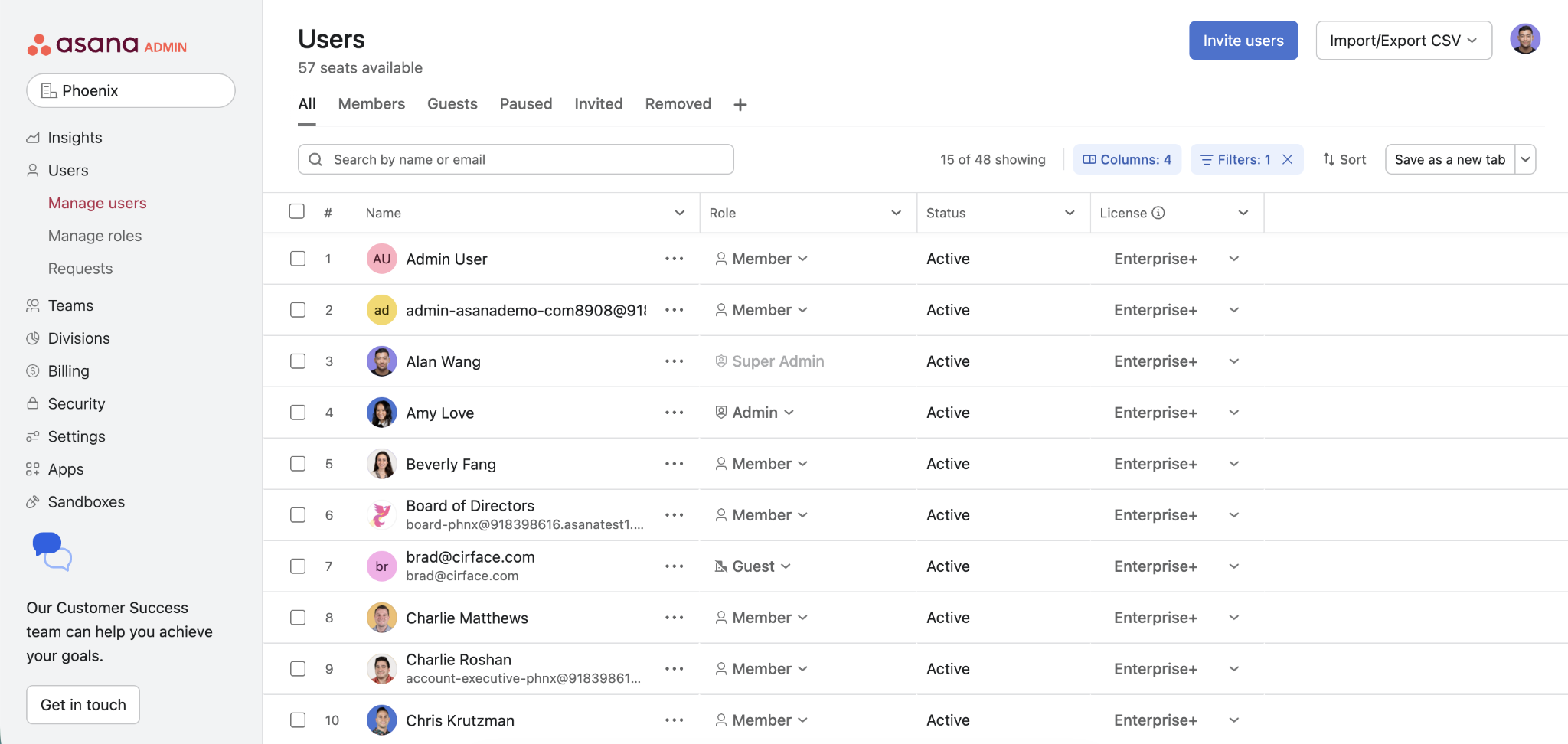
Users option in Asana Admin Console
Use it to invite or remove users as needed.
Teams
Here's where you can create teams for different departments.
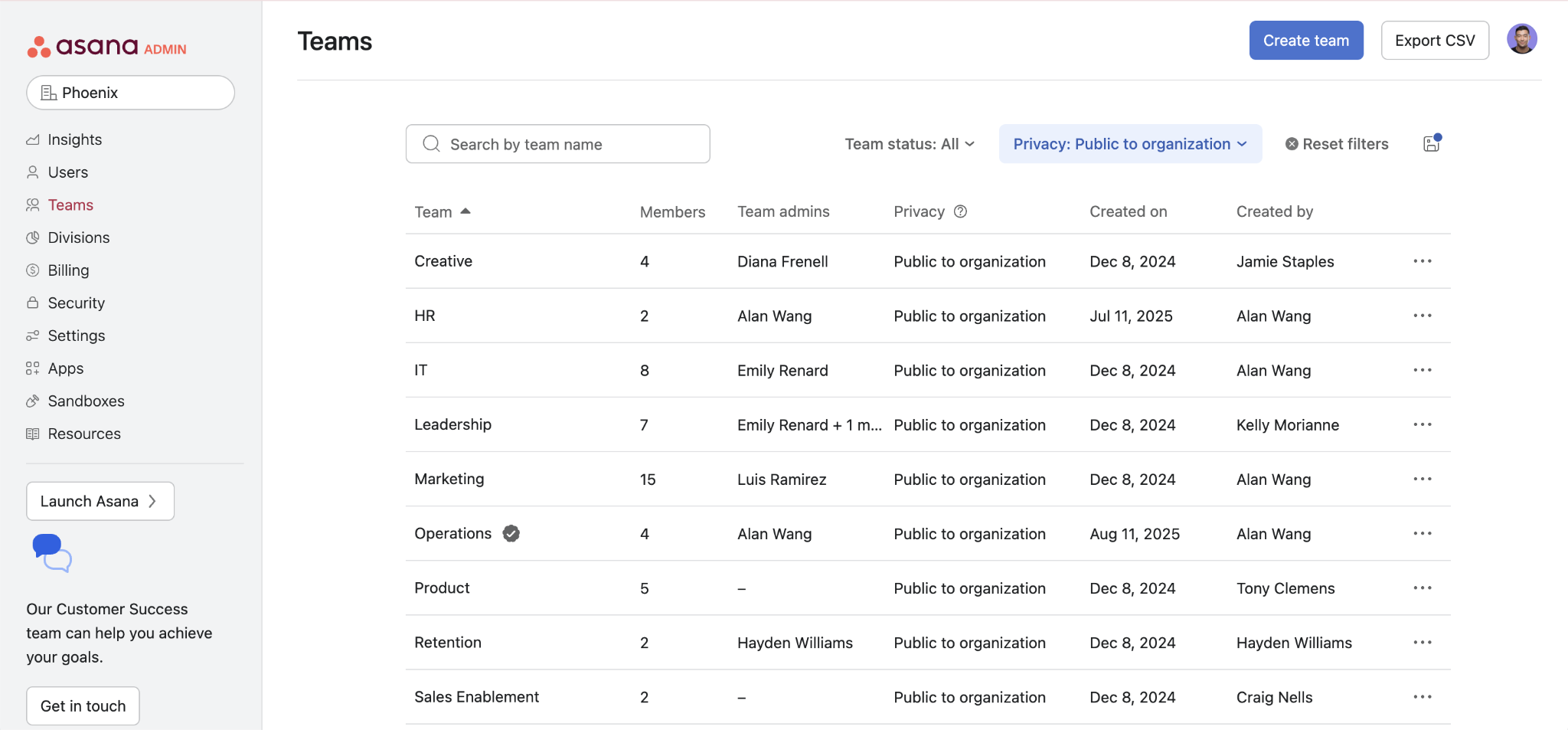
Teams in Asana Admin Console
It's also here that you get to manage their access and assign privacy permissions.
Billing
This is a central hub for managing the subscription.
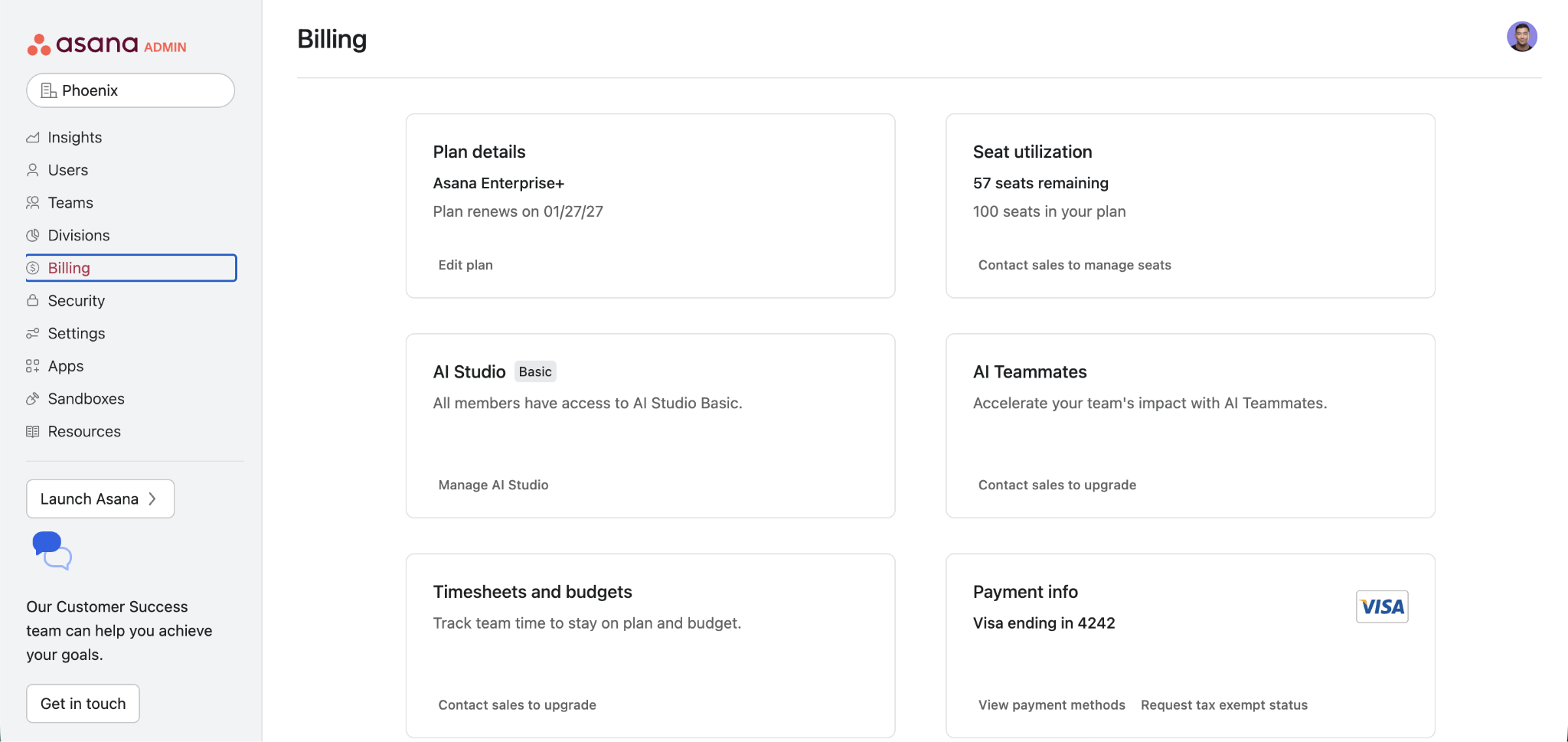
Asana Admin Console Billing Option
You can see the plan & subscription management details, payment history, invoices, and much more.
Security
The Security tab in the Asana Admin Console helps protect your company's data.
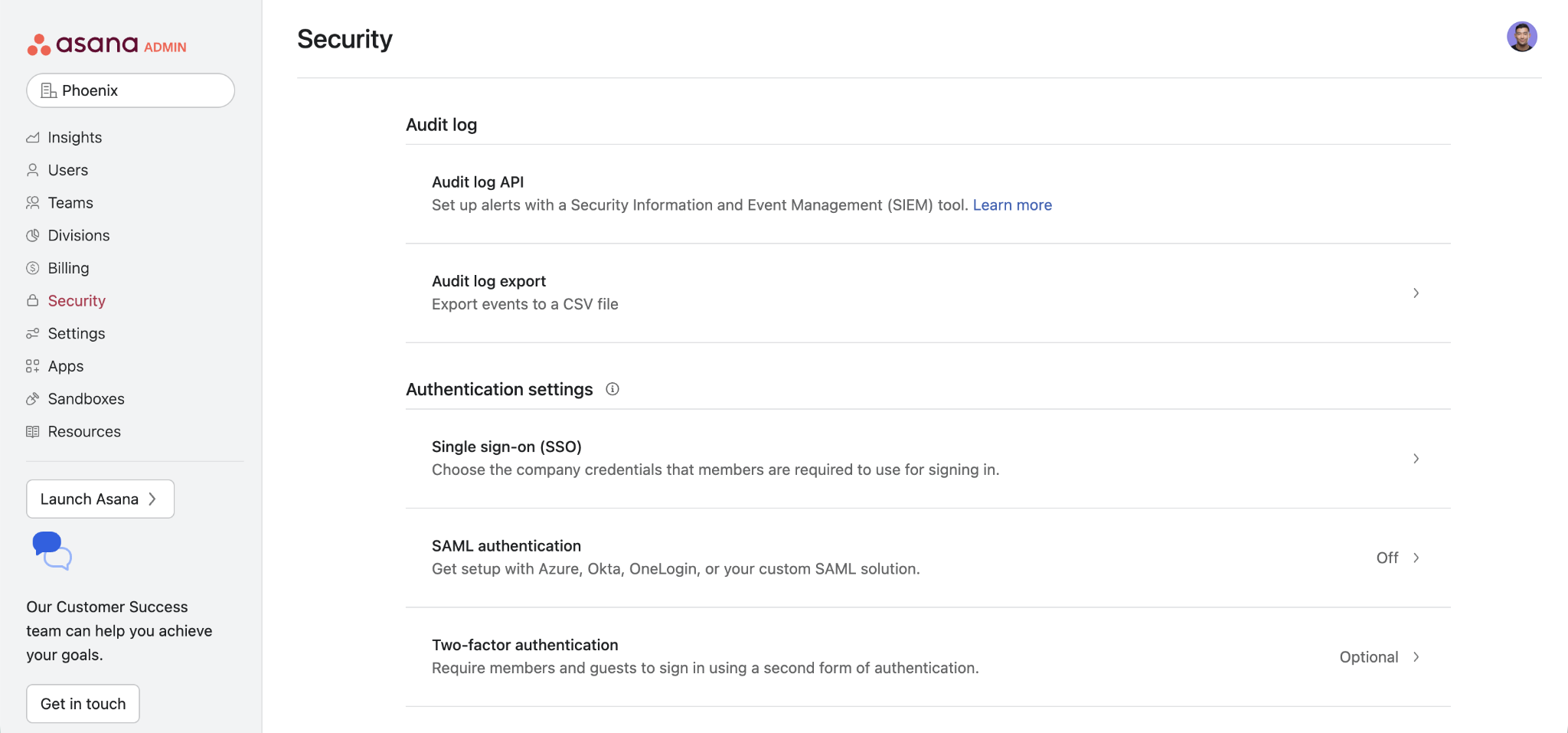
Security option in Asana Admin Console
It manages user authentication and controls collaboration safety across the organization. Covered in full in the next section as we explore Single Sign-On (SAML), SCIM-based provisioning, and Asana Audit Log.
Settings
Asana’s Admin Console includes a Settings option that lets you configure your organization's identity.
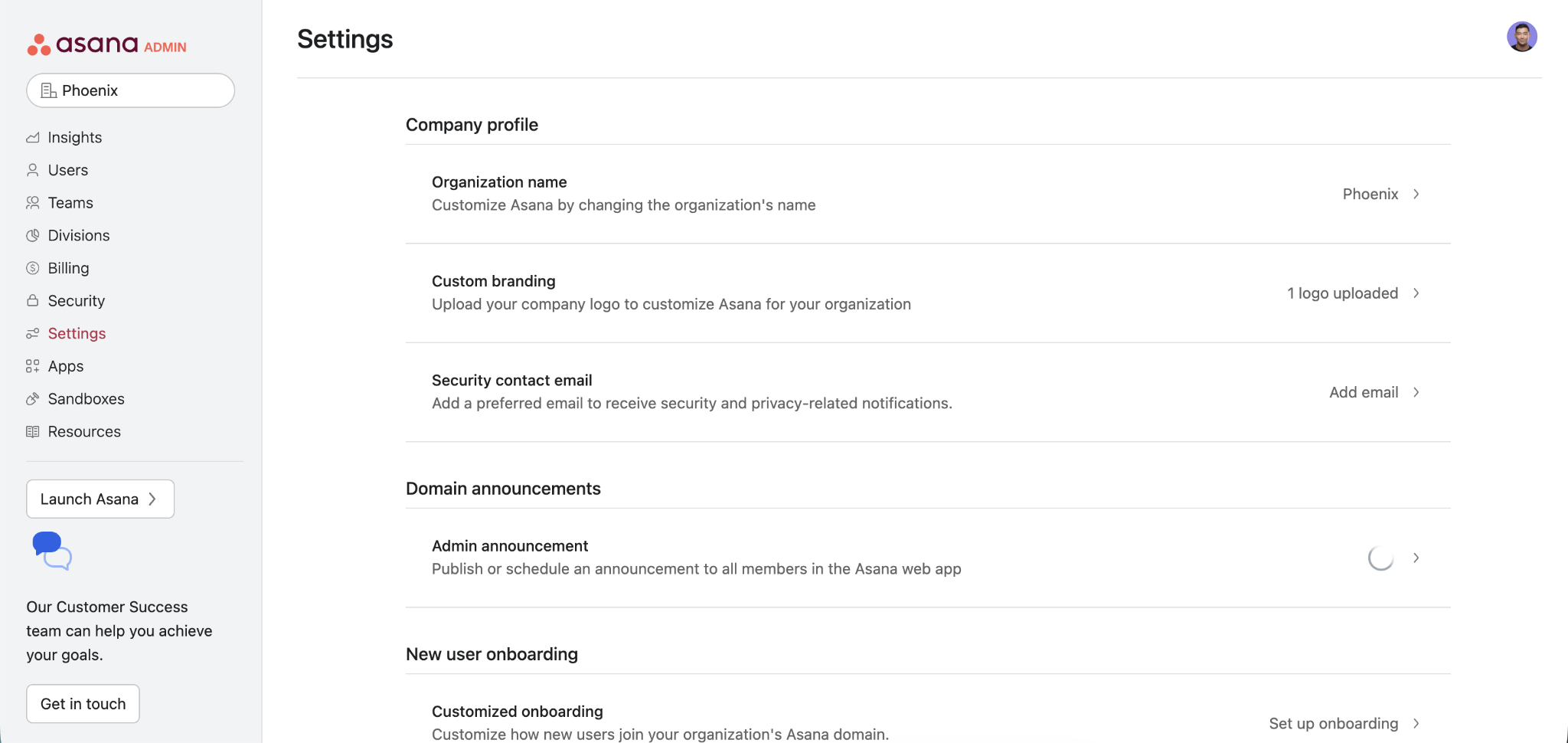
Admin Console Settings in Asana
You can set domain-wide preferences here, from toggling permissions for Asana AI features to managing the company profile and setting up the security contact email.

Apps
The Apps tab is Enterprise+ only. A Super Admin uses it to approve or block third-party integrations for the whole organization.
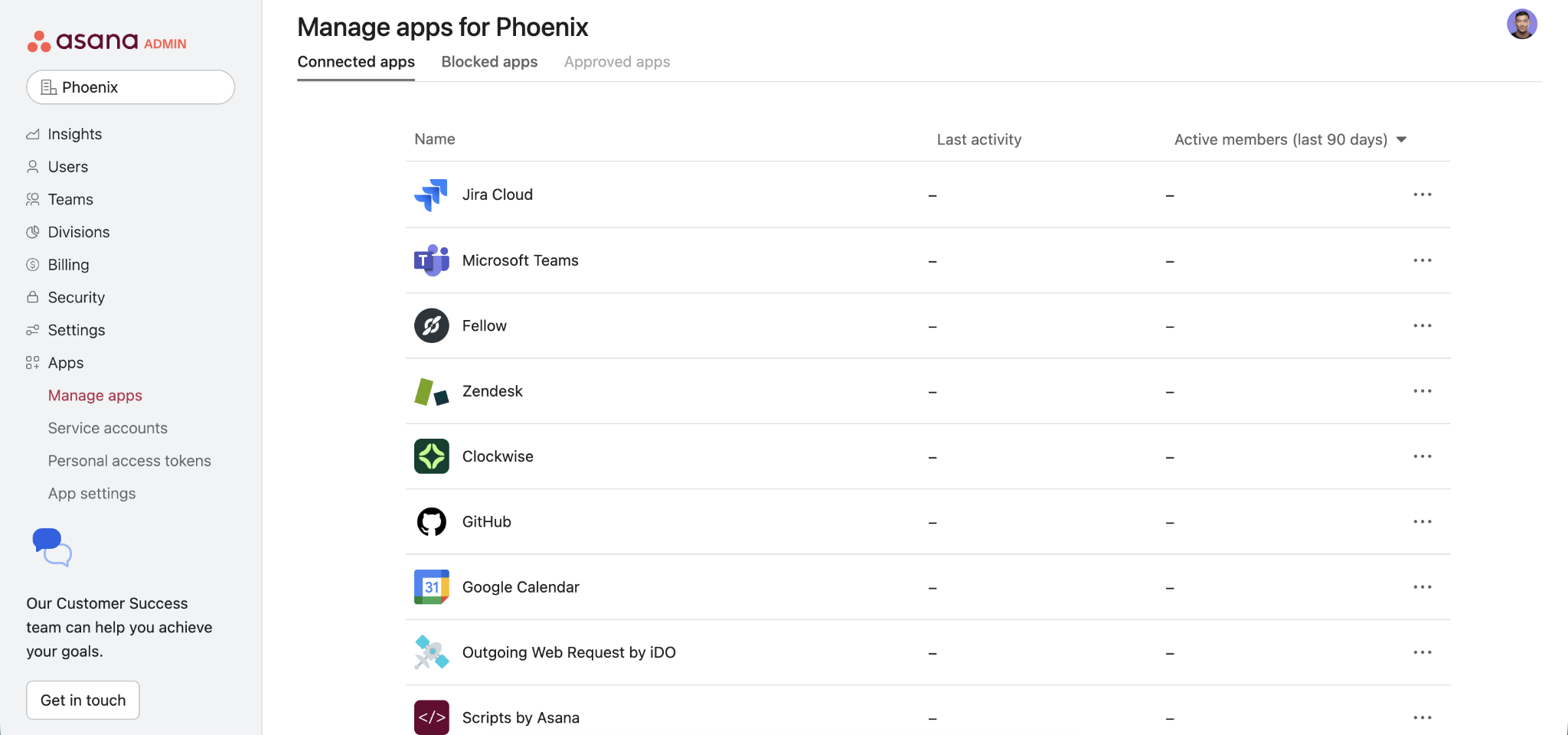
Manage Apps in Asana Admin Console
Organizations below Enterprise+ can request restrictions directly through Asana Support; there's no self-service add-on for this, unlike Audit Log or custom roles. Moreover, the Admin doesn't have console access to this tab regardless of plan.
Sandboxes
Sandboxes are Enterprise+ only, one per organization, and serve as a separate space to test new workflows and integrations before they reach the live workspace.
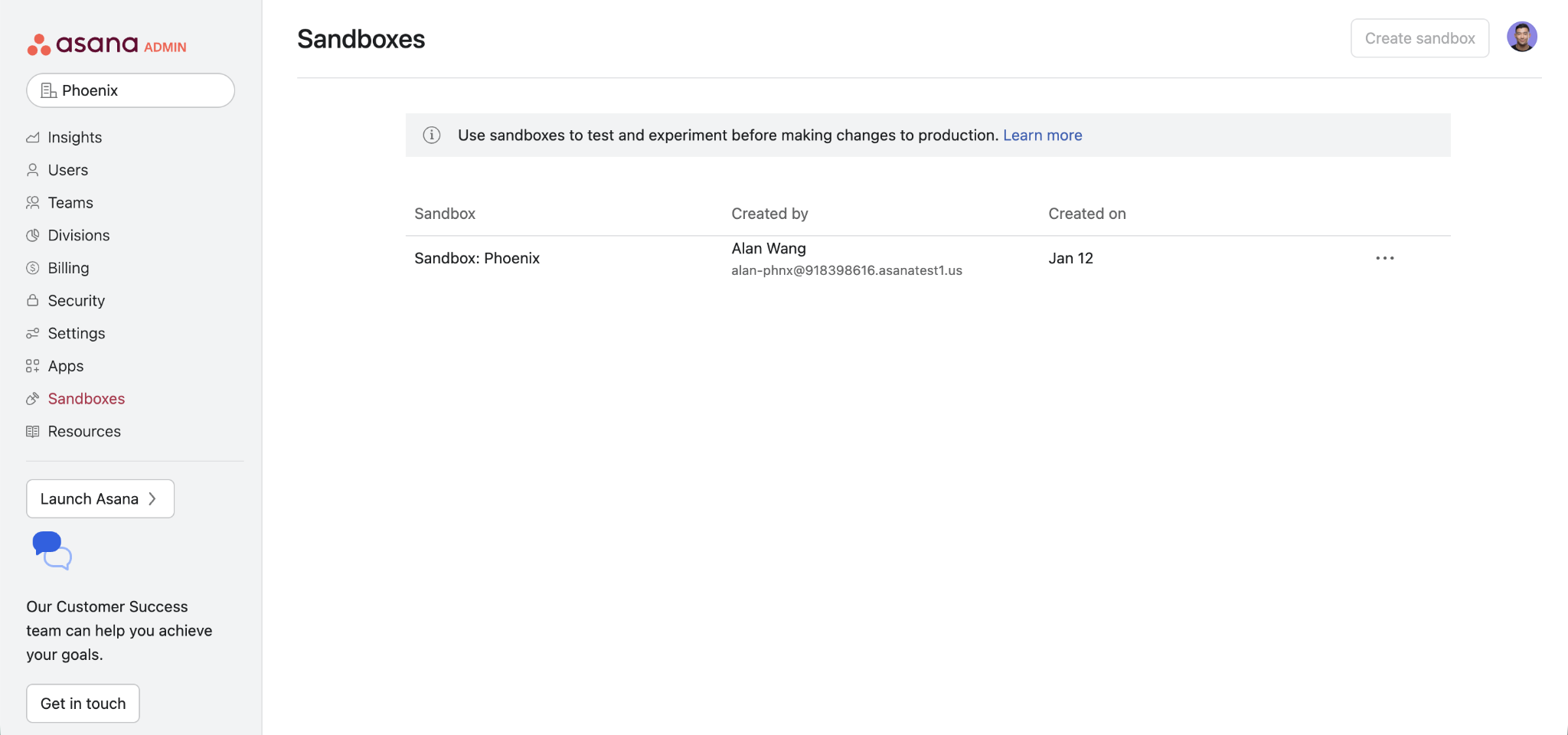
Sandboxes Asana Admin Console
A Super Admin sets one up from the Admin Console sidebar and controls who else gets in. Do note that deleting a Sandbox is a permanent action.
Divisions
A large company does not always want to buy Asana for everyone. A division plan lets you pay for chosen individuals inside the wider organization. You decide who gets a license, and you can see exactly who you are paying for.
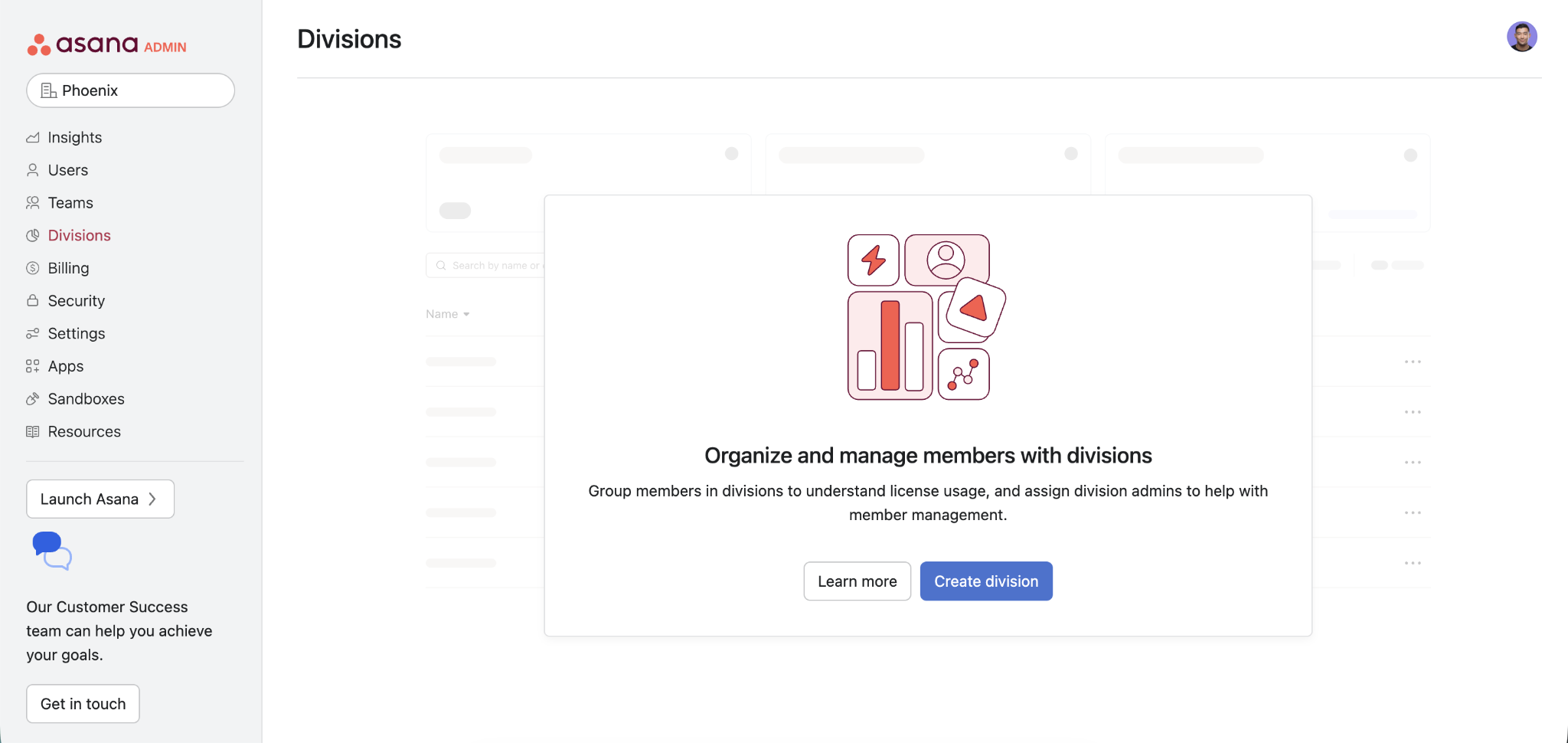
Asana Divisions in Admin Control
Licenses attach to individual people, where a licensed user can keep paid features everywhere they work in Asana. You can add or remove people from a division at any time from this tab.
One thing changes when your company runs on a division plan. There is no subscription at the organization level, so opening the Admin Console takes you to the division admin console. An admin, super admin, or billing owner of that division can open it.
Resources
Resources is a link hub, and it has nothing to do with the admin configuration. It simply houses Asana's own onboarding and training material in one place. It collects links to Asana's own material: getting-started guides, advice on rolling Asana out to your team, use-case examples from other companies, and links to the desktop and mobile apps.
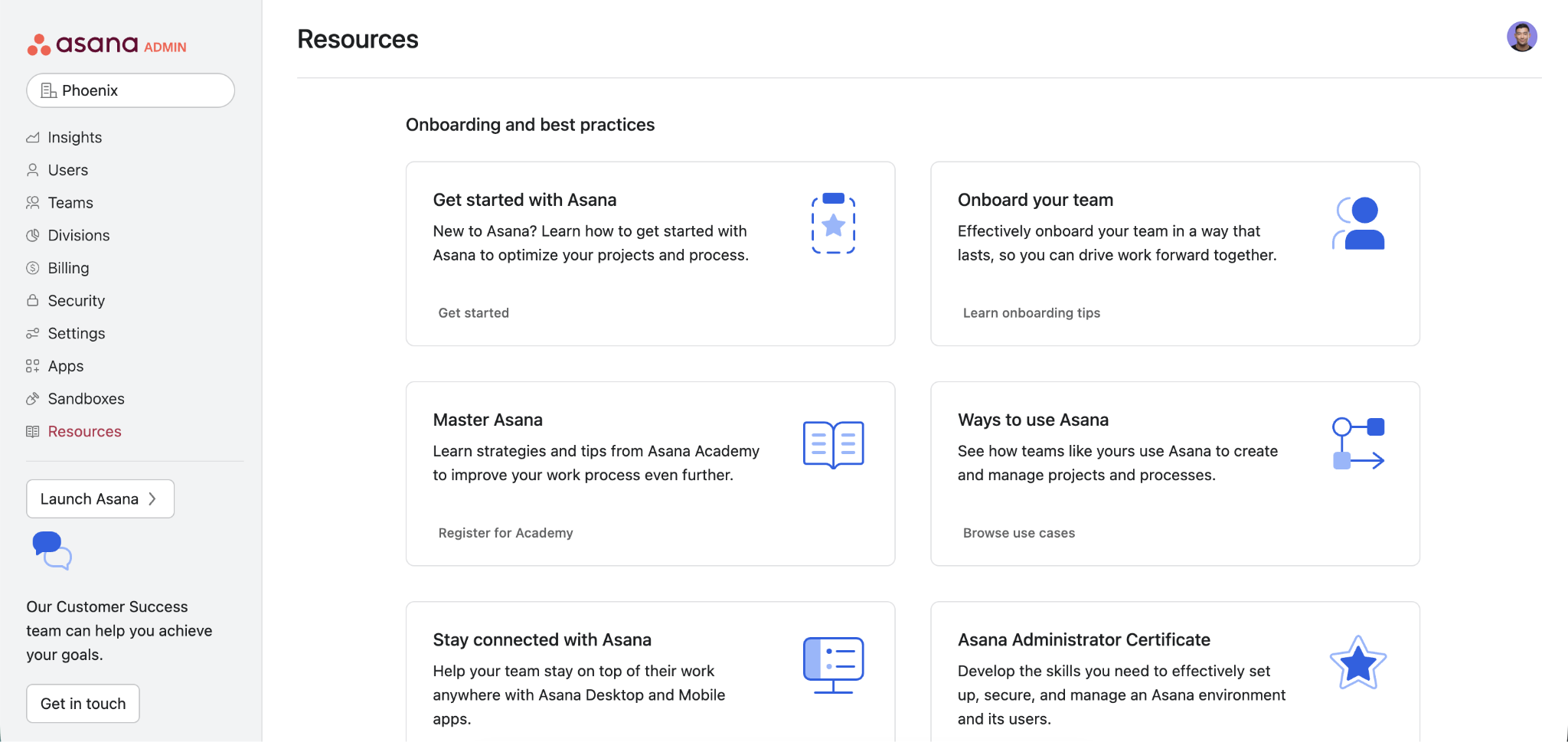
Asana Admin Console Resources
Two of the six cards lead to Asana Academy, where the Asana Administrator Certificate covers setting up and securing an Asana environment.
Asana Admin Console Security: SSO, SCIM, and Audit Log
Not everything in this section needs Enterprise. Two-factor authentication and password strength rules come with any paid plan, Starter included.
The Asana SSO, SCIM, and Audit Log are the features that actually require Enterprise or Enterprise+, and that's where the rest of this section focuses.
SSO
SSO lets people log in to Asana using the same credentials they already use for everything else at work, without needing a separate Asana password. Asana supports this via the Security Assertion Markup Language (SAML), so it works with most identity providers, including Okta, Microsoft Entra ID, Google Workspace, and others.
Google Sign-In is also available as a simpler alternative to full SAML.
Here’s more on how to set up SAML-Based SSO with Asana. You'll need an Enterprise or Enterprise+ plan and admin access to your identity provider. One limit worth knowing: SAML alone doesn't create Asana accounts; it only handles login. New users still need to be added manually or through Asana SCIM.
SCIM
You can set up a System for Cross-domain Identity Management (SCIM) from the Apps tab (not Security) to automate user provisioning and deprovisioning, so Asana accounts are created and removed automatically rather than by hand.
To use SCIM for user provisioning in Asana, connect it to your identity provider, such as Okta, Microsoft Entra ID, or Google Workspace, so Asana can add new hires right away. It can even update their info when it changes and remove access the moment someone's let go.
Make sure you add a Service Account and generate a token that your identity provider uses to connect.
Two prerequisites:
SSO must be running first, and only the Super Admin can set it up (not the Admin).
Same plan requirement as SSO, Enterprise, or Enterprise+
Audit Log
The Audit Log tracks activity in your workspace, including logins, password changes, two-factor authentication status, and changes to admin settings.
Every entry is permanent, such that nobody can edit or delete one. Also, Asana keeps the audit log entries for 90 days before they age out. Security teams often send this to a SIEM (Security Information and Event Management) tool, such as Splunk, for long-term storage and alerting.
Note: This one's gated at a step higher than SSO and SCIM. You'd need Enterprise+, not standard Enterprise, unless you've added the Compliance Management add-on to a standard Enterprise plan.
How Permissions Flow: From Team to Project to Task
Every project belongs to a team, and every task belongs to a project. That's the structure permissions move through, and they move only downward.
Asana sets permissions at the object level. A task, a project, and a team each carry their own access settings. It's because the downward inheritance is just the starting point, not a locked rule. A project can be visible to your whole organization even while its team stays private. A task can be shared with one person even while its project stays closed to everyone else.
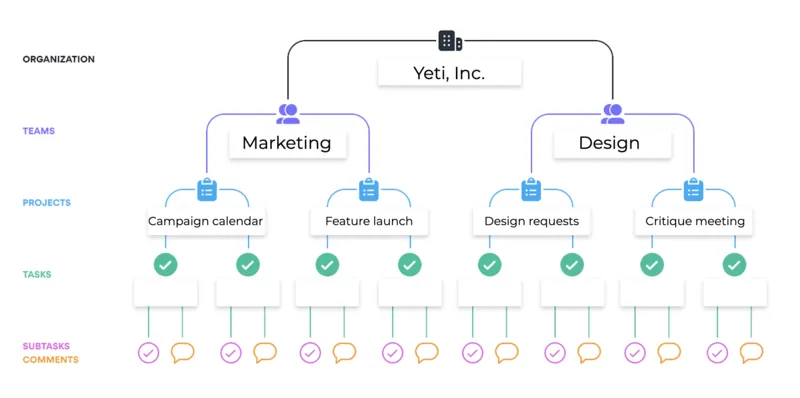
Asana Permissions Flow
Take, for example, a Project inside a private team. The private team controls one thing: who can join the team. It doesn't control who can see the projects inside it. So you can keep the team private where only invited people can join, and still set a project inside it to Shared with organization. Anyone in the company can then open that project, even though they still can't join the team around it.
Tasks work the same way. Say a project is set to Private to members, so its tasks are hidden from anyone outside the project. You can still open a single task to one outside person by adding them as a task collaborator; no project membership needed. They'll see exactly that task and its subtasks, and nothing else in the project.
The takeaway: a team, a project, and a task each control their own access. A project can open up to the whole company, even within a private team, and a task can open up to one external person, even within a private project.
When access looks wrong, check the setting on that exact project or task, not the team or project it sits inside.
Team-level
A team has three privacy settings:
Membership by request: Anyone can find the team, but a member has to request to join.
Private: Only invited members can find or join it.
Public to organization: Any organization member can join directly, unless an admin restricts it.
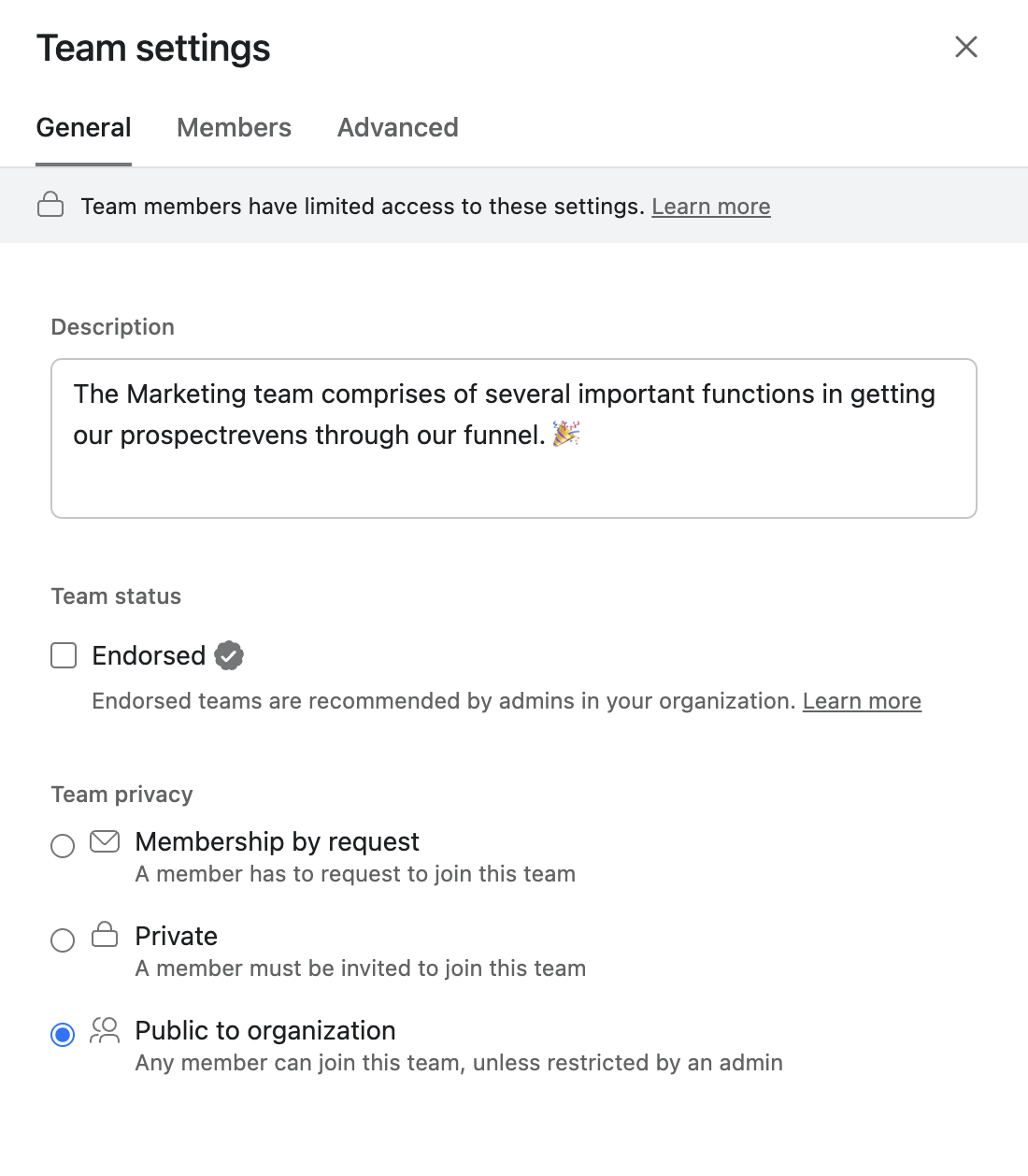
Team-level permissions
Team visibility is the first filter that applies even before project settings come into play.
Project-level
When you create or share a project, you choose between two options: Private or Shared with organization. Shared option makes the project visible to everyone in your Asana organization. In the dropdown, it shows your organization's actual name.
A Private project limits the project to people you add. You can invite individual users or whole teams. Invite a team, and every user in that team gets access.
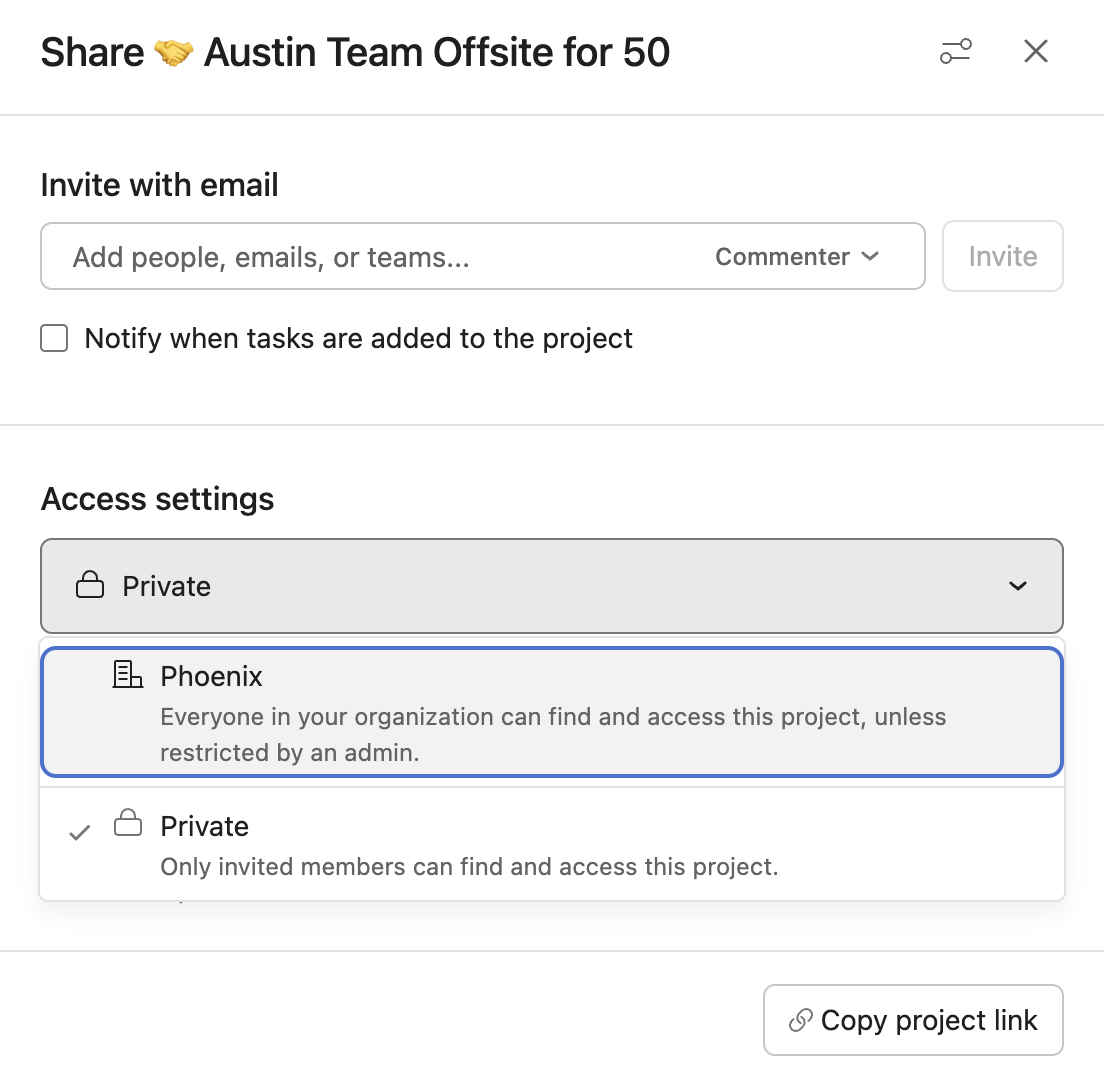
Asana Project Settings
With Team only, everyone on the project's team can open the project. What that means for access depends on the team:
On a private team, the project remains limited to that team's members.
On a public team, anyone in the org can join the team and reach the project through it, even without being added to the project directly.
Private to members works differently. It remains limited to the invited people, whether the surrounding team is public or private.
Note: Super Admins can turn off the Shared with organization setting entirely, leaving only Team and Private available to members.
Which Plan Unlocks Which Feature
Feature access here tracks how much identity and compliance infrastructure a plan assumes an organization already has. The more a feature depends on that infrastructure, the higher the tier it sits behind.
| Feature | Plan required |
|---|---|
| Admin Console access | Starter and up |
| 2FA, password rules | Any paid plan |
| Insights engagement trends | Advanced or Enterprise |
| SSO (SAML), SCIM | Enterprise or Enterprise+ |
| Audit Log | Enterprise+, or Enterprise with the Compliance Management add-on |
| Custom permission roles | Enterprise, org-wide, plus the Permissions Management add-on |
The Permissions Management add-on stands apart from the plan tiers above. It requires the whole organization to be on Enterprise, not just part of it. Once enabled, you can create custom roles beyond the five built-in ones, plus add third-party app controls and tighter guest and file-sharing rules across the org.
For what each plan costs and includes beyond admin controls, see ourcomplete guide to Asana pricing.
FAQs
Let’s address some of the key questions around Asana Admin Console and Permissions.
How do I make someone an Admin?
Open the Admin Console, go to Members
Find the person, click the three-dot menu, and select Change role
Choose Admin, then save
Guests can't become Admins. Only current organization members are eligible.
Why can't I see the Admin Console?
A few things to check, not just roles. Admin Console doesn't exist on a Workspace, only once it's been converted to an Organization, and that's often the real reason it's missing. It also doesn't exist on the free Personal plan. If you already have a paid Organization, then it comes down to role: only Super Admin and Admin get in; every other role is locked out. Check your role under Members, or ask whoever holds Super Admin to check for you.
Can an organization have more than one Billing Owner?
No. Asana supports exactly one Billing Owner per organization. The role is transferable, wherein the current Billing Owner can hand it to someone else from the Billing tab. But only one person holds it at any given time.
What happens to a user's tasks when they're deactivated?
Deactivating someone revokes their access but doesn't delete the tasks assigned to them. During removal, Asana prompts you to gather all that person's tasks into a new project and, if applicable, reassign them to an active user. Take that step, or export the project first if you need the record. Handle it during removal so that no tasks remain stuck under a departed user's name.

Wrapping Up
Working with the Asana Admin Console mostly comes down to knowing which tab holds a given setting. That clears up most of the confusion, especially the assumption that a permission problem starts at the level where it shows up. It rarely does.
Access is almost always set higher at the project or team level, not at the task level. Get those two right, and most day-to-day access problems solve themselves. Come back to the roles and permissions sections above the next time something looks locked down that shouldn't be.
Chances are the answer is already here.